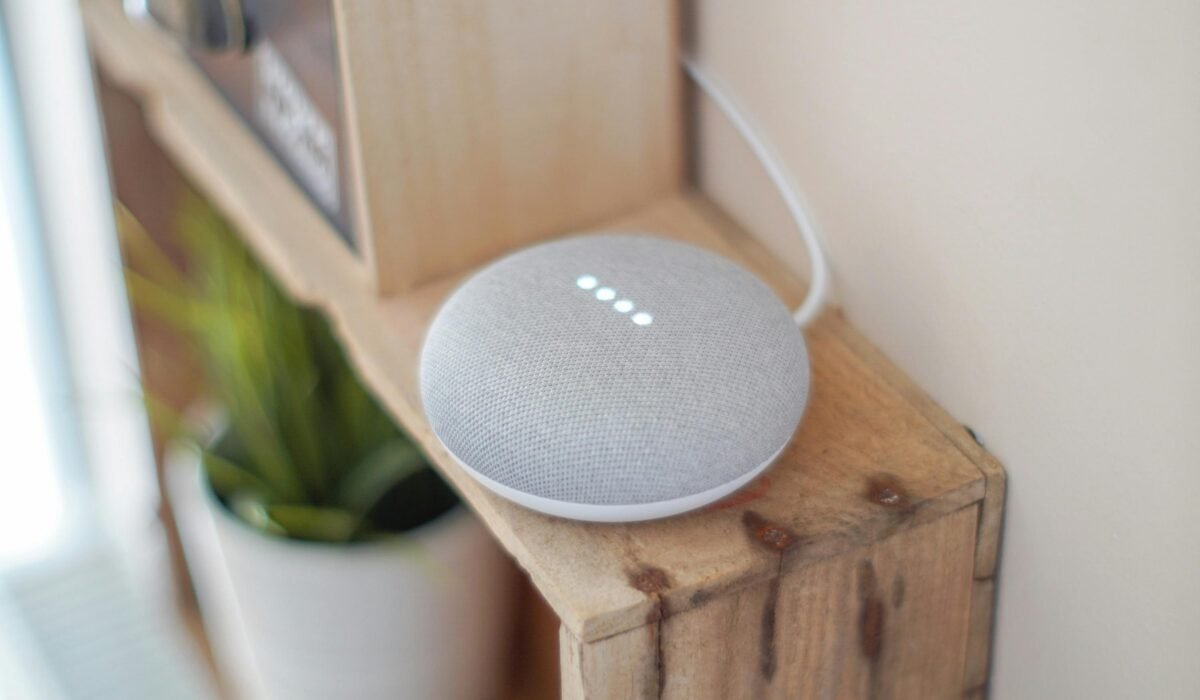
Experiencing glitches with your smart home? When your intelligent ecosystem starts acting less-than-brilliant, knowing how to approach AI Smart Home Troubleshooting Common Issues becomes essential. Many users find themselves asking why their AI-powered devices aren’t responding, or why automated routines suddenly fail. This guide will walk you through diagnosing and fixing the most frequent smart home problems, ensuring your connected living space operates seamlessly once again.
Why is Your AI Smart Home Not Working?
The frustration of a smart home gone silent is a common experience, often stemming from a few core culprits. Understanding these underlying issues is the first step in effective AI Smart Home Troubleshooting Common Issues. The primary reasons your AI smart home might be malfunctioning typically fall into connectivity, software glitches, or power problems.
In practice, Wi-Fi and internet connectivity problems are the most common culprits, affecting 46% of smart home device owners, according to American Home Shield. This highlights how foundational a stable network connection is for any smart device to function correctly. Beyond connectivity, issues can arise from outdated firmware, conflicting automation rules, or even problems with the AI’s inference engine itself.
What most people miss is that many “device failures” are actually network or software misconfigurations. As computer scientist William Enck noted, “Twenty-two of the 24 devices had one type of problem or another… That speaks to this being not just a vulnerability here or there, but a design flaw that smart home manufacturers really need to be paying attention to.” This means many issues are inherent in the system’s design rather than just user error.
Common AI Smart Home Troubleshooting Issues
From a simple light refusing to turn on to complex routines failing, a range of problems can plague your intelligent living space. Identifying the specific symptoms is crucial for efficient troubleshooting. Here are some of the most frequent challenges users face.
Connectivity Drops and Device Unresponsiveness
One of the most vexing problems is when a smart device offline fix is needed because it simply stops communicating. You might find your voice assistant not responding, or a smart plug suddenly unreachable. These smart home connectivity issues often manifest as devices appearing offline in your app, even if they seem powered on.
This usually points to a breakdown in communication between the device, your local network, or the cloud service it relies on. It’s not always the device itself that’s faulty; sometimes, it’s the bridge to its functionality.
Automation Failures and Logic Glitches
When your meticulously crafted routines go awry, you’re experiencing AI automation errors. Perhaps your lights don’t dim at sunset, or your thermostat fails to adjust based on occupancy. These are classic signs of automation logic failures, where the AI’s programmed instructions or learned behaviors aren’t executing as intended.
These issues can be particularly frustrating because they undermine the very promise of a smart home: effortless convenience. Diagnosing them requires looking beyond simple connectivity to the rules and triggers themselves.
How to Fix Smart Home Connectivity Problems
A stable connection is the backbone of any reliable smart home. When devices struggle to connect, it cripples your entire system. Here’s how to effectively address smart home device not connecting to Wi-Fi and other network woes.
- Restart Your Router and Modem: This is the universal first step for almost any connectivity issue. Power cycling your network equipment can resolve IP conflicts and refresh network pathways. Wait at least 30 seconds before plugging them back in.
- Check Wi-Fi Signal Strength: Weak Wi-Fi is a frequent culprit. Ensure your smart devices are within a reasonable range of your router, especially those operating on the 2.4 GHz band, which offers greater range but slower speeds. Consider a mesh Wi-Fi system for larger homes.
- Verify Wi-Fi Band Compatibility: Many older smart devices only support 2.4 GHz Wi-Fi. If your router broadcasts both 2.4 GHz and 5 GHz networks with the same name, your device might be trying to connect to the incompatible 5 GHz band. Try separating the network names in your router settings.
- Reduce Network Congestion: Too many devices on one Wi-Fi channel can cause slowdowns and drops. Access your router settings to check for channel interference and switch to a less congested channel if possible.
- Update Device Firmware: Outdated firmware can lead to connectivity bugs. Always ensure your smart devices and your smart home hub have the latest software updates. Manufacturers frequently release updates to improve stability and security.
- Reset and Re-pair Device: As a last resort, perform a factory reset on the problematic device and go through the pairing process again. This often resolves persistent connection issues by giving the device a fresh start.
Troubleshooting AI Automation and Logic Failures
When your smart home’s intelligence seems to falter, it’s often more complex than a simple disconnect. Diagnosing AI inference failures and automation logic problems requires a closer look at the “brains” of your system. These are the issues that prevent your “fix smart home automation routines” efforts from taking hold.
The short answer is, AI-driven automation relies on specific triggers, conditions, and actions. When one of these elements is misconfigured, or the AI misinterprets data, the routine breaks. For instance, an AI energy management system might stop adjusting schedules if a sensor fails to report occupancy, leading to anomalies.
- Review Automation Rules: Carefully re-examine each step in your problematic routine. Look for conflicting rules (e.g., one rule turning lights on while another turns them off simultaneously) or incorrect conditions (e.g., “if motion detected” but the sensor is offline).
- Check Device Status and Dependencies: Ensure all devices involved in an automation are online and functioning correctly. A routine that depends on a smart lock to trigger a light won’t work if the lock is offline. This directly impacts how your AI home automation errors manifest.
- Examine Sensor Data: If your automation relies on sensors (motion, light, temperature), check their readings in your smart home app. Inaccurate or missing sensor data can lead the AI to make incorrect decisions, causing routines to fail or act erratically.
- Test Triggers Manually: Isolate the trigger for the automation. Can you manually activate the condition that’s supposed to start the routine? This helps determine if the trigger itself is faulty or if the subsequent actions are the problem.
- Clear AI Learning Data (If Applicable): Some advanced AI systems learn your habits. If recent changes in your routine have confused the AI, some platforms offer an option to reset or retrain its learning data. This can help resolve persistent AI automation errors based on mislearned patterns.
What most people miss is that AI systems, while smart, are still deterministic. They follow rules, even if those rules lead to an unexpected outcome. The “unpredictable” nature Roy Akerman mentioned about AI can sometimes manifest as subtle logic flaws in your smart home.
Resolving Matter Interoperability Challenges
The promise of Matter is seamless integration, but in practice, achieving true interoperability across diverse ecosystems like Apple Home, Google Home, Alexa, and Samsung SmartThings can still present hurdles. When you face Matter compatibility problems, it’s often due to varying vendor implementations or network nuances.
Here’s the thing: Matter aims to unify, but the underlying network (Wi-Fi, Thread) and the controlling hub still play critical roles. A device might be Matter-certified, but its integration experience can differ. For instance, a Matter device might pair effortlessly with a Google Nest Hub but require a specific bridge or firmware update to fully expose all its features in Apple Home.
- Verify Hub Compatibility: Ensure your Matter controller (e.g., smart speaker, hub, Apple TV) is up-to-date and fully supports Matter. Not all older hubs received Matter updates, or they might support only a subset of features.
- Check Firmware Versions: Both your Matter device and your Matter controller need the latest firmware. Manufacturers are continuously releasing updates to improve Matter stability and expand compatibility.
- Network Configuration: Matter devices often leverage Thread for mesh networking. Ensure you have a Thread Border Router (often built into newer smart speakers/hubs) and that your Wi-Fi network is stable. Network segmentation or complex firewall rules can sometimes block Matter’s mDNS discovery.
- One Controller at a Time: While Matter allows multiple controllers, sometimes starting with a single controller for initial setup can simplify troubleshooting. Once working, you can add additional controllers.
- Vendor-Specific Apps: Even with Matter, some devices still require their original vendor app for advanced settings or initial setup. If you’re encountering issues, check the device’s native app for diagnostic tools or specific instructions.
Proactive Maintenance: Leveraging AI for Predictive Troubleshooting
Instead of merely reacting to problems, imagine a smart home that anticipates them. This is the cutting edge of predictive maintenance smart home technology, where AI actively monitors your system to prevent failures before they occur. It moves beyond simple “preventative maintenance for smart homes” to intelligent foresight.
While only 12% of homeowners currently prioritize AI inclusion for smart home purchases, its potential for predictive troubleshooting is immense. Advanced AI algorithms can analyze device performance data, network traffic, and even environmental factors to identify subtle anomalies that signal impending issues. For example, AI could detect unusual battery drain patterns in a smart lock, flagging it for replacement before it fails, or notice intermittent drops in network packets to a specific device, indicating a deteriorating Wi-Fi connection.
Some smart home platforms are beginning to integrate these capabilities. They might offer:
- Early Warning Alerts: Notifying you if a device’s battery is critically low, a sensor is frequently offline, or network quality to a specific device is degrading.
- Performance Baselines: AI learns the normal operating parameters of your devices and flags anything outside that baseline, like a smart bulb consuming too much power or a camera’s stream frequently buffering.
- Firmware Update Reminders: Proactively prompting you to update firmware on vulnerable devices, addressing security patches and stability improvements before they cause a problem.
This approach transforms troubleshooting from a reactive chore into an automated, intelligent process, enhancing overall system reliability and user experience. It’s about letting the AI work for you, not just to automate tasks, but to ensure those tasks are always possible.
Addressing Data Privacy and Security in Your Smart Home
Beyond functionality, the security and privacy of your smart home are paramount, especially with the rise of AI-powered devices. Smart home security vulnerabilities are a serious concern, with IoT devices experiencing up to 10 attacks per day, according to the 2024 IoT Security Landscape Report by NETGEAR and Bitdefender. Addressing smart home data privacy issues isn’t just about settings; it’s about active vigilance.
The reality is, a compromised device can lead to unauthorized access to your home, data breaches, or even voice assistant hijacking, as seen in July 2024 incidents. Smart TVs, for example, account for 34% of cybersecurity vulnerabilities in smart home systems, often due to extended lifespans and discontinued manufacturer support.
If you suspect a breach or are concerned about privacy:
- Change All Passwords Immediately: Start with your Wi-Fi network, smart home hub, and individual device accounts. Use strong, unique passwords.
- Isolate Suspect Devices: If you identify a potentially compromised device, disconnect it from your network immediately. This prevents further unauthorized access or data exfiltration.
- Check Device Activity Logs: Many smart home apps and hubs provide activity logs. Look for unusual times of access, commands you didn’t issue, or data transfers.
- Review Privacy Settings: Go through the privacy settings of all your smart devices and apps. Limit data collection to what’s absolutely necessary and understand what information is being shared. For more detailed guidance, read our article on AI Smart Home Privacy: Protect Your Data.
- Enable Two-Factor Authentication (2FA): This adds an extra layer of security to your accounts, making it much harder for unauthorized users to gain access even if they have your password.
- Keep Firmware Updated: Regular firmware updates often include critical security patches that close vulnerabilities attackers might exploit.
- Use a Guest Wi-Fi Network: If possible, segregate your smart devices onto a separate guest Wi-Fi network. This limits their access to your main network and sensitive personal data.
Data privacy is the top concern for 57% of Americans, and rightly so. Proactive security measures are not optional; they are fundamental to a safe smart home experience.
Step-by-Step Guide to Fix Specific Smart Devices
While general troubleshooting helps, some issues are device-specific. Here’s how to tackle common problems with popular smart home gadgets, helping you with your Google Home/Nest troubleshooting guide or Alexa/Echo device not responding fix.
Google Nest Thermostat Issues
Common problems include Wi-Fi connectivity issues, unresponsive displays, and HVAC systems not responding. These can often be solved with a few targeted steps.
- Check Wi-Fi and Power: Ensure your home Wi-Fi is active and the Nest is receiving adequate power. Low battery can cause connectivity drops.
- Restart the Thermostat: Go to Settings > Restart. This can resolve temporary glitches or frozen displays.
- Verify Wiring: If your HVAC isn’t responding, double-check the wiring to your furnace/AC unit. A loose wire can prevent the system from engaging.
- Update Firmware: Ensure your Nest is running the latest software version.
Amazon Echo/Alexa Device Not Responding Fix
When your Alexa/Echo device not responding fix is needed, it can be due to microphone issues, connectivity, or software glitches. Getting your voice assistant back on track is often straightforward.
- Check Microphone Status: Ensure the microphone button on your Echo device isn’t muted (it usually glows red).
- Restart the Device: Unplug your Echo device from the power outlet, wait 30 seconds, then plug it back in.
- Verify Wi-Fi Connection: Open the Alexa app, go to Devices > Echo & Alexa, select your device, and check its Wi-Fi status. Reconnect if necessary.
- Re-register Device: If persistent, try deregistering and re-registering your Echo device in the Alexa app.
For more personalized voice assistant advice, check out our guide on Best AI Voice Assistant for Smart Home? Find Your Match.
Frequently Asked Questions
Why is my smart home not working?
Your smart home might not be working primarily due to connectivity issues, such as weak Wi-Fi or internet outages, which affect nearly half of all smart home users. Other common reasons include outdated device firmware, conflicting automation rules, power supply problems, or temporary software glitches within your devices or smart home hub.
How do you fix a smart home device?
To fix a smart home device, start by power cycling the device and your Wi-Fi router. Then, check its connectivity status in your smart home app to ensure it’s connected to the correct network. If the problem persists, verify its firmware is up to date, review any associated automation rules for conflicts, or as a last resort, perform a factory reset and re-pair the device.
What are the common problems with smart homes?
Common problems with smart homes include devices frequently going offline due to Wi-Fi connectivity issues, automation routines failing to execute as expected, interoperability challenges between different brands or Matter-certified devices, and concerns regarding data privacy and security vulnerabilities. Many issues stem from network instability or software configuration errors rather than hardware failure.
How do I fix smart home connectivity issues?
To fix smart home connectivity issues, first restart your Wi-Fi router and modem. Ensure your smart devices are within good range of your Wi-Fi signal and that they are connected to the correct Wi-Fi band (usually 2.4 GHz for most smart home devices). Updating device firmware, reducing network congestion, and ensuring your smart home hub is online and functioning correctly are also crucial steps.
Mastering AI Smart Home Troubleshooting Common Issues empowers you to maintain a truly intelligent and responsive living space. By systematically addressing connectivity, automation logic, interoperability, and security concerns, you can ensure your smart home remains a source of convenience, not frustration. Remember, a little proactive maintenance goes a long way in sustaining your smart home’s performance and protecting your digital well-being.