Key Takeaways
- External webcams held 54.57% of the webcam market share in 2025, according to Mordor Intelligence (2026).
- Optimizing lighting is the single most impactful way to immediately improve webcam quality without new hardware.
- The webcam market size was valued at USD 10.07 billion in 2025, driven by hybrid work, according to Mordor Intelligence (2026).
- Using an external microphone significantly enhances audio clarity, as proximity to the mic improves sound quality.
- Software tools like NVIDIA Broadcast can apply AI-powered noise suppression and background effects in real-time.
Are you tired of looking grainy, poorly lit, or sounding muffled during your video calls and streams? You’re not alone, and thankfully, there are many effective strategies you can use to immediately **improve webcam quality** for a more professional and engaging presence. This guide will walk you through seven essential ways to enhance both your video and audio, transforming your online interactions.
Quick Answer: Improve webcam video and audio quality by optimizing lighting, adjusting software settings, using an external microphone, and ensuring a clean background. Consider upgrading to a higher-resolution webcam or employing virtual camera software for advanced effects and noise reduction.
Why is Your Webcam Quality So Bad?
Your webcam quality often appears poor due to a combination of inadequate lighting, outdated hardware, and suboptimal software settings. Many built-in laptop cameras, for example, use tiny sensors that struggle in anything less than perfect conditions, leading to grainy, dark, or washed-out images. Understanding these root causes is the first step to effectively improve webcam quality.
Most people don’t realize how much their environment impacts their camera’s performance. Even the best webcam will produce a subpar image if there isn’t enough light, or if the light source is positioned incorrectly. This is a common oversight that severely affects video clarity.
Poor audio quality, often characterized by echoes, background noise, or muffled speech, can be even more detrimental than bad video. “Bad quality audio can quickly turn a good conversation into a frustrating one,” notes Daniel Compton, a remote worker with extensive experience, underscoring the importance of clear sound.
The webcam market size was valued at USD 10.07 billion in 2025 and is estimated to grow to USD 10.57 billion in 2026, according to Mordor Intelligence (2026), reflecting a surge in demand for better remote communication tools. This growth is driven by the increasing reliance on hybrid work and live streaming, making the need to improve webcam quality more pressing than ever.
Quick Fixes: Software Settings to Improve Webcam Video
You can often significantly improve webcam quality by simply adjusting the settings within your webcam software or video conferencing applications. These quick fixes leverage your existing hardware to its fullest potential without requiring any new purchases. Fine-tuning these settings can make a surprising difference in how you appear on camera.
Many popular platforms like Zoom and Google Meet offer built-in video enhancements that are often overlooked. Activating these features can help reduce graininess and improve overall clarity, providing an immediate boost to your visual presence. It’s a simple way to improve webcam quality without much effort.
Step 1: Optimize Software Settings
The first step to significantly improve webcam quality is to dive into your camera’s software settings. These adjustments can drastically enhance your image, making you look more professional and clear. Taking the time to configure these options correctly is paramount for a better visual experience.
* Check Resolution and Frame Rate: Ensure your webcam is set to its highest available resolution (e.g., 1080p or 4K) and frame rate (30fps or 60fps). Lower settings can make your video appear blurry or choppy.
* Adjust Brightness, Contrast, and Saturation: Experiment with these sliders to find a balanced image. Too much brightness can wash you out, while too little makes you dark. Tools like OBS Studio allow for real-time adjustments and filters to sharpen and color correct your feed.
* White Balance: Correcting white balance ensures colors appear natural, not too blue or too orange. Most webcam software, including Elgato Facecam Software, offers automatic or manual white balance settings.
* Exposure Compensation: If your video is too dark or bright, adjusting exposure can help. This tells the camera how much light to let in, crucial for maintaining image quality in varying light conditions.
* Utilize Virtual Camera Software: Programs like XSplit VCam can act as a virtual webcam, allowing you to apply filters, background removal, and other enhancements before sending the feed to your video conferencing app. This is an excellent way to improve webcam quality through software.
Many video conferencing platforms, such as Zoom, offer advanced video settings that can reduce noise and enhance low-light performance. Enabling these features can compensate for less-than-ideal lighting conditions, making your image clearer and more vibrant.
Lighting & Environment: How to Make Your Webcam Look Better
To truly improve webcam quality, optimizing your lighting and environment is often more impactful than any hardware upgrade. Proper lighting minimizes shadows, reduces graininess, and ensures your face is clearly visible, creating a more professional and engaging presentation. This foundational step dramatically enhances your visual appeal.
A well-lit scene allows your webcam’s sensor to capture more detail and produce a cleaner image, even with a basic built-in camera. Natural light from a window is often the best option, but supplementary lighting can fill in the gaps. This is a critical factor when you want to improve webcam quality.
Step 2: Improve Lighting & Environment
Improving your lighting setup is arguably the most critical step to dramatically improve webcam quality. Even a high-end webcam will struggle in poor lighting, so focusing on this aspect yields significant returns. Strategic lighting can transform a dull, grainy image into a crisp, professional one.
* Frontal Lighting is Key: Position your primary light source directly in front of you, slightly above eye level. This illuminates your face evenly, casting minimal shadows and making you appear brighter. Avoid backlighting, which silhouettes you.
* Use Natural Light: If possible, sit facing a window during daylight hours. Natural light is soft and flattering, providing excellent illumination to improve webcam quality.
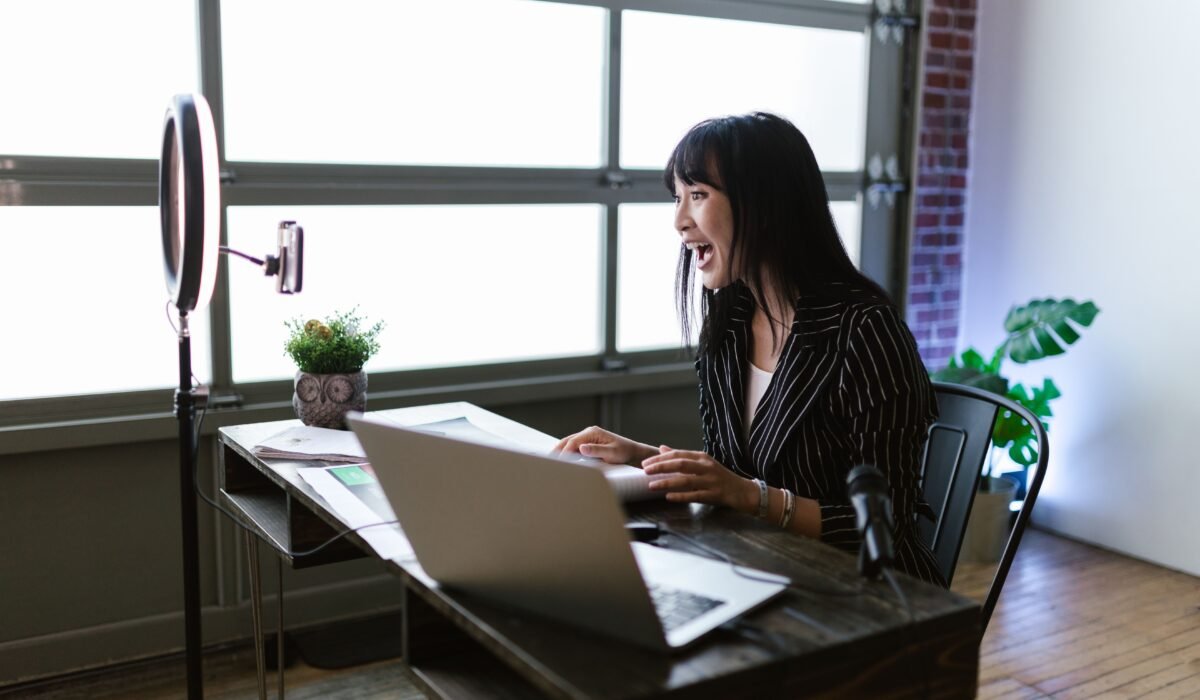
* Invest in a Ring Light or LED Panel: For consistent, professional lighting, a dedicated webcam lighting setup is invaluable. Ring lights provide even, shadow-reducing illumination, while LED panels offer adjustable brightness and color temperature.
* Clean and Uncluttered Background: A simple, tidy background helps keep the focus on you. Remove distractions and ensure your background is well-lit but not overly bright. For those who want to improve webcam quality without a physical backdrop, consider virtual background features.
* Consider Budget Acoustic Treatment: While primarily for audio, a room with soft furnishings (carpets, curtains, bookshelves) can also subtly improve video by making the space feel warmer and more inviting. This also helps reduce echo, indirectly supporting your overall presentation.
External webcams held 54.57% of the webcam market share in 2025, according to Mordor Intelligence (2026), largely due to their superior optics and flexible positioning. However, even these high-performing devices require good lighting to deliver their full potential.
Boost Your Audio: How to Improve Your Mic Quality
To truly improve webcam quality, addressing your audio is just as important as video, as clear sound ensures your message is heard without effort or frustration. Poor audio can quickly detract from your professional image, regardless of how good your video looks. Prioritizing sound clarity is essential for effective communication.
Many people overlook the quality of their microphone, relying on built-in laptop mics that pick up excessive background noise and echo. Upgrading your microphone setup is a game-changer for anyone serious about improving their overall online presence. This is a critical step to improve webcam quality.
Step 3: Upgrade Your Microphone
Upgrading to an external microphone is the single most effective way to dramatically improve webcam quality in terms of audio. Built-in microphones are often inadequate, picking up too much ambient noise and lacking clarity. A dedicated microphone ensures your voice is crisp and clear, making you easier to understand.
* Proximity is Key: As Richard D. Bartlett, an expert in audio improvement, notes, “the closer the mic, the better the sound.” Positioning your microphone close to your mouth drastically reduces background noise and improves vocal presence.
* USB Microphones: For most users, a plug-and-play USB microphone offers a significant upgrade over built-in options. Brands like Blue Yeti or Razer Seiren Mini provide excellent sound quality for their price.
* Headset Microphones: Gaming headsets often come with high-quality boom mics that are excellent for isolating your voice. This can be a dual-purpose solution for both gaming and professional calls. If you’re looking to improve gaming headset audio, many of the same principles apply.
* Audio Interface for Advanced Setups: For professional-grade sound, consider an XLR microphone paired with an audio interface. This setup provides superior control over your audio levels and can accommodate higher-quality microphones.
* Software Noise Suppression: Utilize software features like NVIDIA Broadcast’s AI-powered noise removal or Zoom’s original sound settings to filter out fan noise, keyboard clicks, and other distractions. This helps to further improve webcam quality by ensuring your voice stands out.
AmberMac Media stresses that “People tend to prioritize video over audio but it is very important to do your best with audio.” This highlights the often-underestimated impact of clear sound on viewer perception and engagement, emphasizing why efforts to improve webcam quality must include audio.
Advanced Gear: External Webcams & DSLR Setup
When basic adjustments aren’t enough, investing in advanced gear like external webcams or repurposing a DSLR camera can significantly improve webcam quality. These options offer superior optics, larger sensors, and more control, resulting in a much sharper, more detailed, and color-accurate image. This is where hardware truly elevates your presentation.
Full HD webcams commanded 45.72% of the webcam market size in 2025, according to Mordor Intelligence (2026), indicating their widespread adoption. However, 4K UHD models are advancing rapidly, cementing higher resolutions as the new baseline for those seeking to truly improve webcam quality.
Step 4: Consider External Webcams
Upgrading to a dedicated external webcam is a straightforward way to substantially improve webcam quality over most built-in laptop cameras. These devices feature better lenses, larger sensors, and more advanced image processing, delivering a superior visual experience. Selecting the right external webcam can be a game-changer for your online presence.
* Popular Choices: The Logitech C920/C920x has been a reliable streaming staple for years, offering consistent 1080p performance. For 4K, the Logitech MX Brio is a flagship option known for its improved image processing and “Show Mode.”
* High-End Performance: Webcams like the YoloLiv YoloCam S3 stand out with one of the largest sensors (1/1.3 inches) ever put in a webcam, dramatically improving dynamic range and low-light performance. This level of hardware makes it easier to improve webcam quality.
* Features to Look For: Prioritize webcams with autofocus, good low-light performance, and a wide field of view if you need to show more of your environment. Many also come with integrated software for fine-tuning settings.
Step 5: Set Up DSLR as Webcam
Using a DSLR or mirrorless camera as your webcam is the ultimate way to achieve professional-grade video quality and significantly improve webcam quality. These cameras offer large sensors, interchangeable lenses, and exceptional image fidelity, far surpassing what most dedicated webcams can provide. This setup is ideal for content creators and professionals who demand the best.
* Required Hardware: You’ll typically need a capture card (e.g., Elgato Cam Link 4K) to convert your camera’s HDMI output into a USB signal your computer can recognize.
* Camera Compatibility: Check if your DSLR or mirrorless camera supports “clean HDMI output,” meaning it sends a video signal without overlays like battery life or settings.
* Software Integration: Many camera manufacturers offer utility software (e.g., Canon EOS Webcam Utility, Sony Imaging Edge Webcam) that allows your camera to function as a webcam directly via USB, though a capture card often provides better performance.
* Power and Lenses: Ensure your camera has a continuous power source (AC adapter) for long sessions and choose a prime lens (e.g., 50mm f/1.8) for a pleasing background blur (bokeh) that further enhances your professional look. This setup demands careful attention to detail but offers unparalleled results to improve webcam quality.
Troubleshooting Common Webcam Video and Audio Issues
Effective troubleshooting is crucial when you encounter problems, as it helps diagnose and resolve issues preventing you from achieving optimal webcam quality. Many common video and audio glitches can be fixed with systematic checks, saving you from unnecessary frustration or expense. Knowing how to troubleshoot helps maintain a consistent, high-quality online presence.
From blurry video to echoing audio, understanding the typical culprits can quickly get you back on track. A dedicated webcam troubleshooting approach is often all that’s needed to restore clarity and professionalism. This systematic process is vital to improve webcam quality.
Step 6: Troubleshoot Common Issues
When your video or audio isn’t performing as expected, a structured troubleshooting approach is necessary to identify and resolve the problem, helping you to improve webcam quality. Don’t immediately assume your gear is broken; often, the solution is simpler than you think. This methodical process will save you time and frustration.
Here’s a breakdown of common issues and their solutions:
| Issue | Potential Cause | Solution to Improve Webcam Quality |
|---|---|---|
| Grainy/Noisy Video | Low light, small sensor, high ISO | Increase frontal lighting, adjust software exposure, reduce digital gain if possible. |
| Blurry/Out of Focus | Autofocus issues, dirty lens, manual focus setting | Clean the lens, check software for autofocus settings, ensure you’re within the camera’s focus range. |
| Choppy Video | Low frame rate, insufficient bandwidth, CPU overload | Lower resolution/frame rate, close unnecessary apps, check internet connection speed. |
| Echoing Audio | Speakers too loud, mic picking up speaker output, poor room acoustics | Use headphones, lower speaker volume, add soft furnishings to the room. |
| Muffled/Distant Audio | Poor mic placement, low input volume, weak mic | Move mic closer to mouth, increase mic input level in software, consider an external mic. |
| Webcam Not Detected | Driver issues, USB port problem, privacy settings | Update drivers, try a different USB port, check OS privacy settings for camera access. |
Always ensure your drivers are up-to-date and that your operating system grants the necessary permissions for your camera and microphone. Sometimes, a simple restart of your computer or the application can resolve minor glitches that prevent you from getting the best possible visual and audio output.
The Power of “Before & After”: See the Difference
Visualizing the “before & after” impact of various adjustments is highly motivating and clearly demonstrates how even small changes can dramatically improve webcam quality. Seeing the tangible difference in lighting, audio, or background removal truly underscores the effectiveness of these tips. This approach helps you understand the real-world benefits of optimizing your setup.
Many advanced software tools now offer real-time previews, allowing you to experiment with settings and effects. This immediate feedback loop empowers you to fine-tune your appearance and sound, ensuring you look and sound your best. Leveraging these tools is a smart way to improve webcam quality.
Step 7: Utilize AI Software Tools
AI-powered software tools offer advanced ways to automatically improve webcam quality, especially for background management and noise reduction. These applications leverage machine learning to deliver effects that would otherwise require specialized hardware or a perfect physical environment. Integrating these tools can provide a significant boost to your video and audio.
* NVIDIA Broadcast: For users with compatible NVIDIA GPUs, this software offers powerful AI features including background removal (without a green screen), noise suppression (eliminating keyboard clicks, fan noise), and auto-framing. It’s an excellent way to improve webcam quality for streamers and professionals.
* XSplit VCam: This tool provides cutting-edge background replacement, removal, and blurring capabilities, integrating seamlessly with popular video conferencing and streaming apps. It allows you to maintain privacy and a professional look without needing a physical green screen.
* OBS Studio Filters: While not strictly AI, OBS Studio, a free and open-source software, offers a range of real-time webcam filters such as chroma key, color correction, and sharpening. These can be used to refine your image and improve webcam quality before it even reaches your video call.
* Virtual Camera Applications: Many webcams, like the Elgato Facecam, come with their own software that provides live image processing, built-in video settings, and real-time filters. These proprietary tools are designed to maximize the performance of their respective hardware.
The corporate and enterprise sectors commanded 38.82% of webcam revenue in 2025, according to Mordor Intelligence (2026), largely driven by global hybrid work policies. This demand underscores the critical need for reliable and high-quality communication, making AI tools an increasingly popular solution to improve webcam quality in professional settings.
| Scenario | “Before” (Common Issue) | “After” (With Fix) | Impact on Webcam Quality |
|---|---|---|---|
| Lighting | Dark, shadowy face, grainy video | Bright, evenly lit face, clear image | Dramatic improvement in clarity and professionalism. |
| Audio | Echoing, muffled voice, background noise | Crisp, clear voice, minimal distractions | Enhanced communication, reduced listener fatigue. |
| Background | Cluttered, distracting items, lack of privacy | Clean, simple background or virtual blur | Professional appearance, focus remains on speaker. |
| Resolution | Pixelated, low-detail video | Sharp, detailed, vibrant image | Increased visual fidelity and engagement. |
| Graininess | “Noise” visible in darker areas, soft edges | Smooth video, sharp details, vibrant colors | Cleaner, more polished visual presentation. |
Frequently Asked Questions
How can I make my webcam look better?
You can make your webcam look better by optimizing lighting, adjusting software settings, and ensuring a clean background. Proper frontal lighting eliminates shadows and makes your image clearer, allowing your webcam to capture more detail. Investing in a ring light or using natural light can dramatically improve webcam quality.
Why is my webcam quality so bad?
Your webcam quality is often bad due to poor lighting, an outdated or low-quality built-in camera, and incorrect software settings. Many laptop cameras have small sensors that struggle in dim conditions, leading to grainy and dark video. External webcams held 54.57% of the webcam market share in 2025, according to Mordor Intelligence (2026), largely because they overcome these limitations.
How do I make my webcam less grainy?
To make your webcam less grainy, significantly improve your lighting setup, especially with frontal light, and adjust your webcam’s exposure settings. Graininess often results from insufficient light, forcing the camera to increase its ISO sensitivity. Ensuring adequate light allows the camera to produce a cleaner image, which is key to improve webcam quality.
How can I improve my mic quality?
You can improve your mic quality by using an external microphone and positioning it close to your mouth, and by utilizing software noise suppression. “The closer the mic, the better the sound,” emphasizes Richard D. Bartlett, highlighting that proximity is crucial for capturing clear audio and minimizing background noise. Investing in a dedicated USB mic is a significant step to improve webcam quality.
What are the best webcam settings for Zoom?
The best webcam settings for Zoom typically involve enabling HD video, adjusting for low light, and suppressing background noise in Zoom’s video and audio settings. Ensure your webcam’s native software is also optimized for resolution, white balance, and exposure. These adjustments are vital to improve webcam quality for professional virtual meetings.
By implementing these seven essential strategies, you can significantly improve webcam quality for both your video and audio, transforming your online presence. Whether you’re making quick software adjustments, optimizing your lighting, investing in an external microphone, or exploring advanced camera setups, each step contributes to a more professional and engaging experience. Start experimenting with these tips today to look and sound your best in every virtual interaction.